Illustrator

Underline or strike text in Adobe Illustrator

Illustrator Character PanelFor longtime users of Adobe Illustrator, you may not have even noticed that back in Illustrator CS2, Adobe finally added a simple way of underlining text - rather than drawing a vector line with the pen tool and grouping it with your text.

CS2 and CS3 users can use text underline and strikethrough by opening your Character Panel, click on the Options flyout menu and choose Show Options. Two new buttons should appear near the bottom of the Character Panel. Much easier for us old-timers!

Using "Global" colors in Adobe Illustrator

First let me start out by saying that Global process colors in Adobe Illustrator are mostly useful only if you're doing a complex illustration or layout that uses a lot of the same color or tints of the same color.

Global ColorsGlobal process colors are easily identified in Illustrator's swatches palette by their empty white triangle in the lower right corner of the swatch. Spot colors use the same triangle, but put a small dot inside it, and process colors have no triangle at all.

Global process colors allow you to create a single color swatch that you can update and have it apply, of course, globally. For instance, if you apply the same global color to many objects in your Illustrator document, then you decide you want to change the color, it only takes a click or two to update all the objects. You simply alter the global color to your liking, and everything on the page updates.

You can create a Global process color by clicking the Global check box in the New Swatch dialog or the Swatch Options dialog box. Global colors are disabled by default.

When you're working with spot colors like Pantones in Adobe Illustrator, overprint settings can dramatically affect the output results. For this reason, it's best to periodically go to your Illustrator menubar and select View>Output Preview>Overprint Preview and view your document for undesired overprint settings. This will give you a more accurate idea of what your file will look like when printed.

Free vector art from Dezignus

res_florals.jpg

There's no freebie like a vector freebie, I always say. Dezignus' site is full of them, including this beautiful floral border design, as well as Simpsons characters, stars, flourishes, icons, and other border elements.

Be sure to also check out the links to Photoshop brushes, tutorials and inspirational material while you're there.

Create a rotatable globe in Illustrator

Rotating globe tutorial

Chris over at Blog.SpoonGraphics has posted a great little tutorial on how to create a rotatable globe in Illustrator using the 3D tools Adobe built-in to Illustrator.

The tutorial yields great results. But let's face it, how often do you need to create a globe? OK, you're right, not often. But take what you learn and apply it to other objects that fit within your design ideas.

If you find yourself needing to show a client what their artwork will look like on a T-Shirt, Vector4Free has something for you that will make the presentation a little easier.

Free vector T-shirt model artwork

T-Shirt Models features is a free vector files containing 4 T-Shirt Models and 2 T-Shirt Shapes, front and back, for girls and boys.

Path Styler Pro plugin

Creating fancy logos, title graphics and stylized type generally requires a lot of work. And depending on whether you use Adobe Illustrator or Photoshop, you’re probably going to end up with layer upon layer of gradients, strokes and bevels.

Thankfully, Path Styler Pro 1.5 solves all those problems no matter which program you use, producing high-quality graphics with a noticeable ease of use.

Read my full review of Path Styler Pro at Macworld.com's Creative Notes blog.

Phantasm CS rocks Adobe Illustrator

When we talk about plugins, you generally assume we're talking about Photoshop add-ons. Most people don't even realize that you can add features to Adobe Illustrator using plugins, let alone name a good one.

Phantasm CSPhantasm CS Studio 1.0 by Astute Graphics is not only one of those good ones, but it's a whole suite of good ones. Where most plugins have the goal of creating artwork for you, Phantasm CS is more of a production tool in that it's main set of tools involves the ability to adjust colors by Brightness/Contrast, Hue/Saturation, Curves, Levels and more. But Phantasm CS doesn't completely leave you out in the cold when it comes to cool "design" features. The Halftone tools is uber-cool if you ask me, but I'll get into that later.

Getting large layer icons in Adobe Illustrator

Illustrator Layers
When you're working in Adobe Illustrator, keeping your artwork on different layers can be a huge time-saver and makes it much easier to edit with complex illustrations — much like Photoshop.

But sometimes you can't be bothered to name your layers properly and you rely on the little icons in the Layers Panel to tell you which layer you want to work on. The problem is that those tiny layer icons can be difficult to identify the more you put on each layer (See the image above). Thankfully, Illustrator gives you way to make the icons in the Layer Panel larger.

Layers Panel OptionsFirst, open the Layers Panel flyout menu and scroll all the way to the bottom and select Panel Options. Next, select the Other: radio button and enter a pixel amount in the size box (I chose 50 pixels). Obviously, this is the size you want your Layers Panel icons to appear. I recommend staying 75 pixels or under — anything larger and you'll be scrolling quite a bit to see the layers in the Panel. Now just click OK and you're all set.

As you can see by the image below, the icons in the Layers Panel are now much easier to decipher.
Large Layers icons
Though my sample illustration isn't difficult to begin with, you can easily see the advantage of making the icons larger when you compare it to the first image.

Adobe IllustratorZevrix Solutions announced the release of ArtOptimizer 2.0, its comprehensive solution for reducing the size of images linked to Adobe Illustrator document automatically. Similar to LinkOptimizer, the Zevrix flagship product for InDesign, ArtOptimizer saves hours of production time, gigabytes of disk space and reduces production costs by eliminating excessive image data.

How does ArtOptimizer work?

ArtOptimizer will automatically reduce the image resolution and resize the images in Photoshop according to their dimensions in the Illustrator document and the target resolution specified, and reimport them to Illustrator at 100%.

ArtOptimizer lets you backup original images linked to Illustrator document before the processing as well.

In addition, ArtOptimizer can convert image colors to CMYK, RGB or Grayscale, apply sharpening filters during processing and flatten images.

The new version is compatible with Mac OS X Leopard and Adobe CS3, allows users to run Photoshop Actions and adjust layer merging options.

I came across this really cool site called IllustrationClass which offers awesome downloadable tutorials for Adobe Illustrator. The tutorials include notes in English and Spanish, screen captures of each step of the process, as well as the actual Illustrator files. Definitely worth checking out if you use Illustrator.

Yesterday, you resized an Illustrator text frame and the text reflowed, staying the same size. Today, you enlarged an Illustrator text frame and the text grew right along with it. How do you force Illustrator to act the way you want it to?

IllustratorMordy Golding, Illustrator guru and author of several books on Illustrator, often gets questions about scaling text in Illustrator CS, CS2, and CS3. For example, someone scales his text frame only to find that the text within the frame becomes scaled as well. He wants to simply resize the frame, allowing the text within to reflow without changing size. Sometimes it works as he wants it to, while other times, it doesn't -- which leads to frustration and acts of computer violence. Why this seemingly inconsistent behavior?

Mordy covers the differences between Illustrator's two text options: Point Type and Area Type, as well as how to properly scale text in Illustrator in this article at CreativePro.

seamless patterns

Veerle has a quick tutorial on how to create seamless patterns in Adobe Illustrator. These patterns make the perfect finishing touch as background elements in your designs, and creating them is simple.

Create a halftone-dot effect in Adobe Illustrator

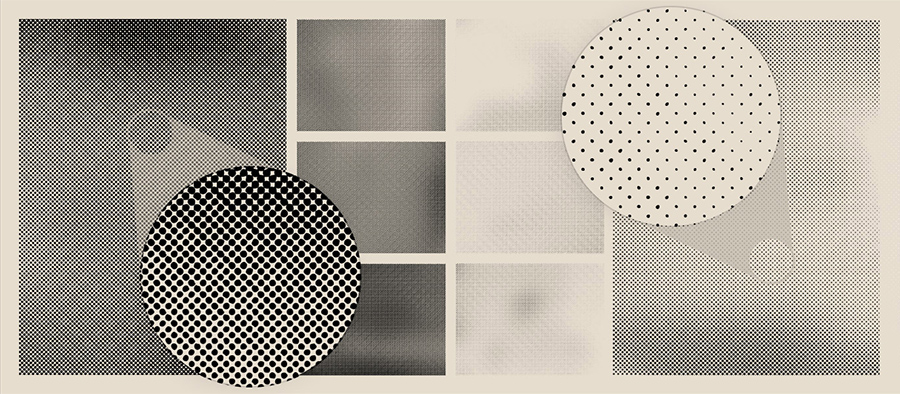
A while back I posted a link that would show you how to create an interesting halftone-dot effect in Photoshop. Recently, a reader left a comment on the post asking if there was a way to achieve the same effect in Illustrator. I'm happy to report that there is, and I've put together a tutorial to show you how.

vector halftone dot effect

Step 1:
Create a shape in Illustrator that you wish to convert into the halftone-dot effect. I chose a star. To achieve the mixed-size dots, you'll want to use a gradient, and to make it easy later, you should probably start with a simple black color.

Step 2:
Select the object and select Effect>Pixelate>Color Halftone... from the menu. The color halftone dialog box will open where you can enter some numbers to adjust the appearance of the effect.

vector halftone dot effect

Set the Max. Radius to 10-15 pixels. This will determine the size of the largest dot in the effect. Go ahead and leave the screen angles at the default setting. Hit OK. The star is now converted to a raster image. The darkest areas of the star have the largest dots, and the lightest areas have smaller dots. We are now half way there. We need to convert the raster image to vector.

Step 3:
With the star still selected, go to Object>Expand Appearance in the menu. Now select Object>Live Trace>Make and Expand from the menu. The star is now a full vector object. You can select each dot individually if you choose because they're all vector shapes (see step 3 in the image above). But you probably want to add some color.

vector halftone dot effectStep 4:
If the star is on a white background, everything will appear to be perfect. But draw a box, fill it with color and send it to the back by hitting Command-Shift-[. You'll notice that the inside of the star remains white. If you want it to be transparent, you have just a bit more work to do. See the image at the right for an example of what I'm talking about.

Use your Direct Select tool (the white arrow) to select any white are in the newly created halftone dot area. Go to Select>Same>Fill Color in the menu. Now that all the white areas are selected (including the white bounding box around the star, hit Delete. You should be left with nothing but the dots now. Now select the star again and add a color to it as you would any other object. Because the star is a compound path, all the dots will be colorized.

That's it. You have your halftone-dot effect, and it's a fully-editable vector object in Illustrator. Why would you want to do it in Illustrator? Because many sign shops and screen printers require everything to be a vector shape depending on their production methods. Plus, it adds a little more flexibility for later editing.

vector halftone dot effect

I chose to use a one color object for the sake of keeping this tutorial simple, but you can apply the same technique to a full color object for different results. See the image above with the same star filled with a color gradient.

In the past, Illustrator had a startup file (one for CMYK and one for RGB) which was stored in the Plugins folder. Any changes made to these startup files were included in every new file that was created in Illustrator. However, with Illustrator CS3, the concept of Startup files has been replaced with something new (and much better) – New Document Profiles.

Mordy Golding has a great intro to Document Profiles over at Real World Illustrator to get you acquainted with using them.