 Apple | Mac
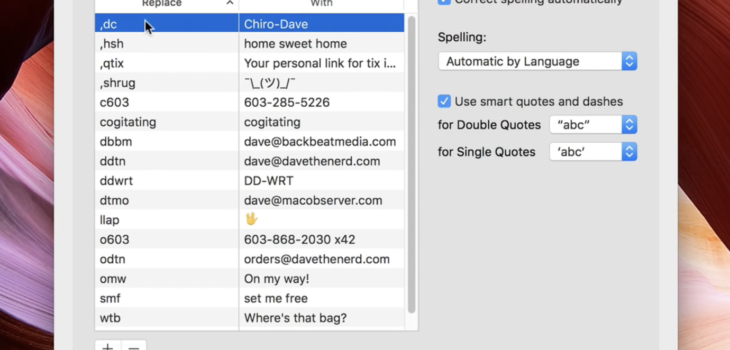
How to backup your Text Substitution settings
It’s so simple that I can’t imagine anyone ever figuring it out on their own.
Read more “How to backup your Text Substitution settings”
Apple | Mac
It’s so simple that I can’t imagine anyone ever figuring it out on their own.
Read more “How to backup your Text Substitution settings” Apple | Mac
If you’re ready to update to the latest El Capitan release, but hate amount of time it takes to download via the Mac App Store—and the fact that you don’t have an installer left behind to use on other Macs—then what you want are one of these two installers from Apple.
Read more “Get your OS X 10.11.4 Combo & Delta updaters here”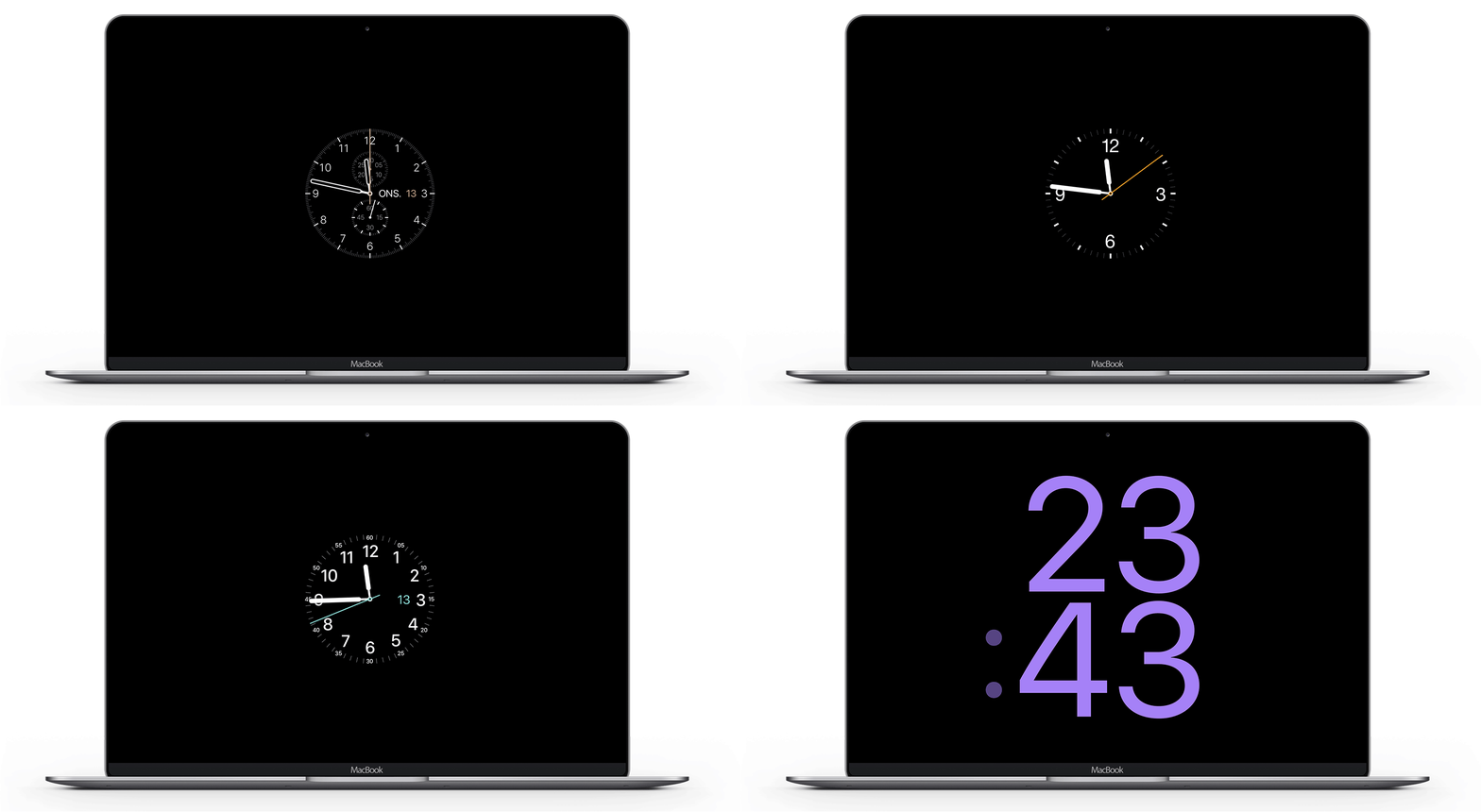 Apple | Mac
If you like having new screensaver on your Mac, grab this Apple Watch screensaver from Rasmus Nielsen.
Read more “Apple Watch screensaver for OS X” Apple | Mac
When I decided to take a look at Commander One, I did so with the expectation that I was going to be looking at something that was equal to or better than apps I was already familiar with and/or used on a regular basis—such as XtraFinder, Path Finder, Transmit, etc.. After looking at the feature list of Commander One, I immediately wondered if it could possibly deliver on the promises it made.
Commander One is what you would call a Finder Enhancement app. It simply recreates Finder windows and adds a multitude of tweaks and features to them. This is nothing new; XtraFinder does this to some extent, and and Path Finder have done these things for years. But Commander One promises to offer Path Finder-level features, plus a built-in FTP manager, at an affordable price through the Mac App Store—where you have the luxury of installing it on five Macs at a time. Read more “Can you really replace Mac OS X’s Finder?”
 Apple | Mac
El Capitan is here. Servers will likely be running slow most of the day, so perhaps spend the afternoon backing up your Mac before updating. Or, you can read the obscenely thorough Ars Technica review of El Capitan.
 Apple | Mac
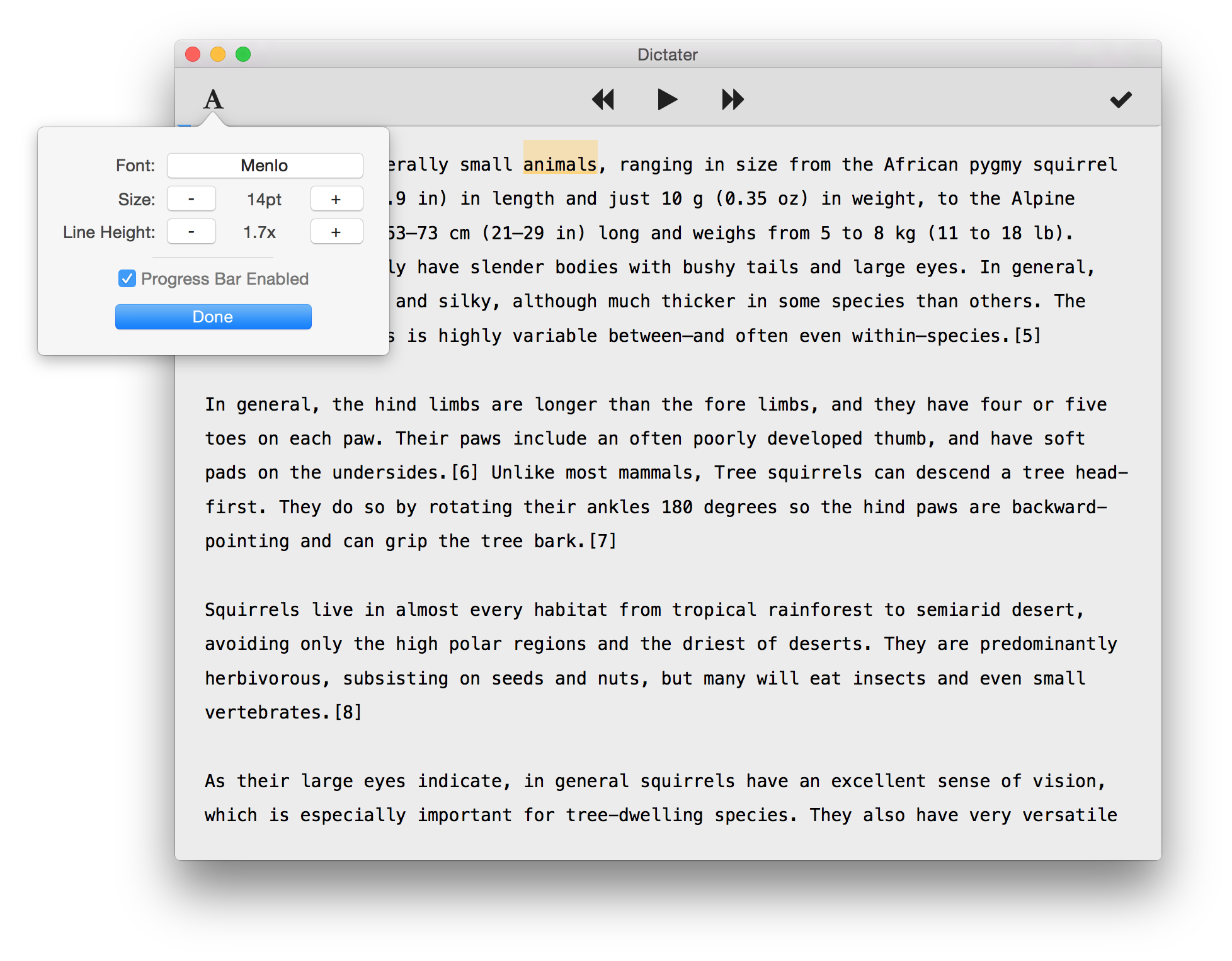
If you use Mac OS X’s built-in speech service to read text back to you, you’re going to love this little gem!
Dictator is a free add-on that enhances built-in speech services by adding a progress indicator, a teleprompter (for reading along with the audio if you wish), and control audio with play, pause, and skip forward by sentence or paragraph controls.
To use Dictator, you simply select some text in any Services supported app (pretty much every app), right-click and choose Dictate from the menu.
You can download Dictater here.
 Apple | Mac
If you installed Apple’s latest beta of OS X, El Capitan, you may have noticed the LCD appears to be a bit brighter with less contrast. I didn’t notice a problem until I launched Diablo III and found that it was almost unplayable due to the screen brightness.
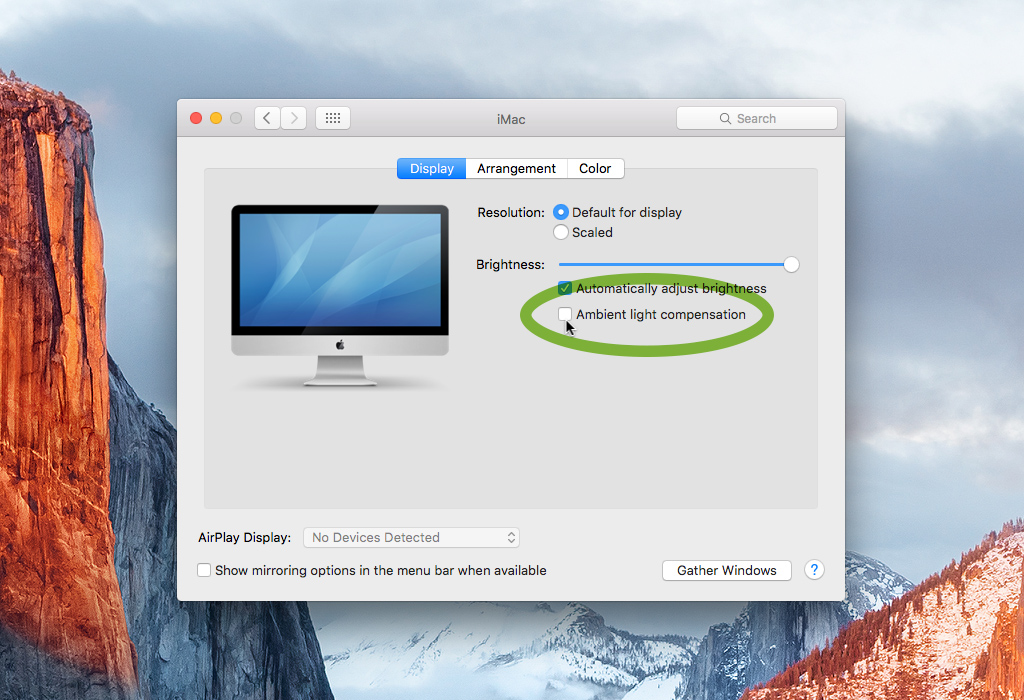
After tinkering, I realized that El Capitan has added an option in the Display preferences that allows your Mac to automatically adjust the display based on ambient light. Turning this option off (unchecking) fixed my screen brightness issue.
Because this is an iMac, in an office where I control the lighting, this is probably optimal. However, I haven’t installed the beta on my MacBook Pro, so I’m not sure if the new feature offers benefits to mobile users.
 Apple | Mac
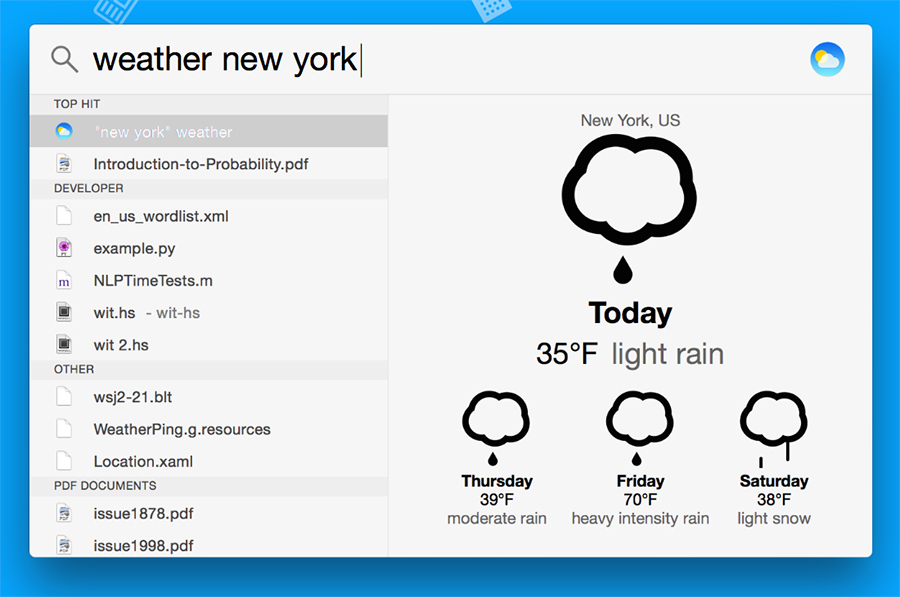
Search the web, save a note, add a reminder, or do over 200 other things just by typing in the Spotlight box (Command + Space). There are dedicated apps that do a lot of this, but they can be complicated.
Flashlight is simple to use and offers plenty of pre-built plugins to download, including: setting reminders, sending emails (including adding attachments), check the weather, add a calendar event, place Lorem Ipsum text, show hidden system files, and much more. You can also write your own plugins if you wish.
Flashlight is free, and requires Mac OS X Yosemite.
 Apple | Mac
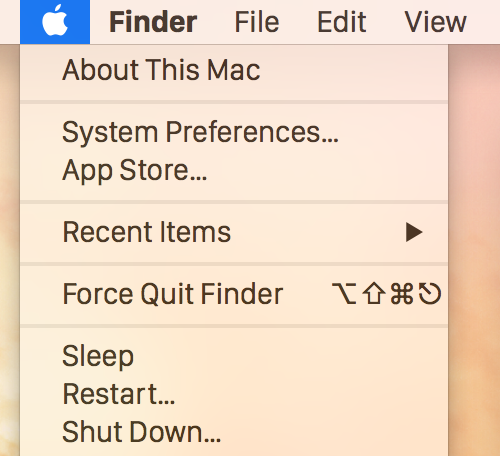
Rumor has it that Apple will be switching the default system fault from Helvetica Neue to their own proprietary SanFrancisco font, currently used on the Apple Watch, with the next Mac OS X Yosemite update.
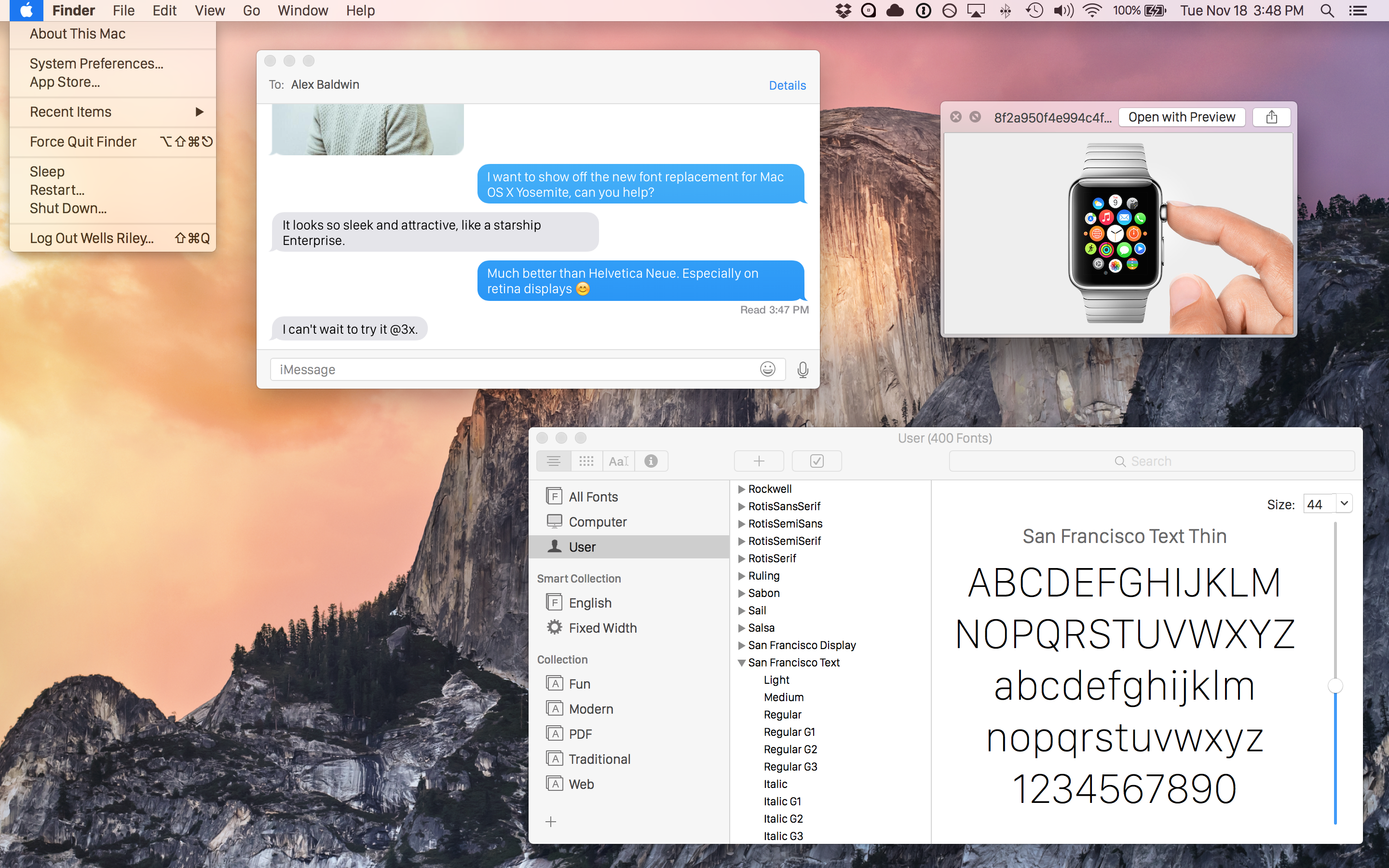
If you love tinkering with your Mac, you can download the SanFrancisco font (direct link) and place the font files in your /Library/Fonts (that’s the Library folder at the top level of your Mac’s storage drive, not the one in your Users or System folder). Now log out and log back in to your Mac to activate the new font system-wide.
I recently installed SanFrancisco font as the default and I love it. I’ve also used other Yosemite font replacements like Fira, Source Sans, Input Sans, and even the old OS X Mavericks default, Lucida Grande.
You can patch any font you wish to be a system replacement font yourself. Unfortunately, it requires some geeky wet-work with the Terminal.
 Apple | Mac
“What the hell is filling up my hard drive?” It’s a question we all have after a year or so of downloading files and storing work documents on our Macs. A cluttered storage disk can lead to all sorts of problems, not the least of which is making your Mac run slow.
CleverFiles has a fairly new app for Mac OS X that can help you analyze your storage drive and remove large files and folders easily. Disk Cartography maps your drive data and lists the space-hogging files in an easy-to-read list, and allows you to delete the unwanted files/folders with the click of a button.
Upon launching Disk Cartography, it scans your chosen disk and displays a tree-like folder-structure which you can use to evaluate what’s taking up space, as well as where it is on your drive.
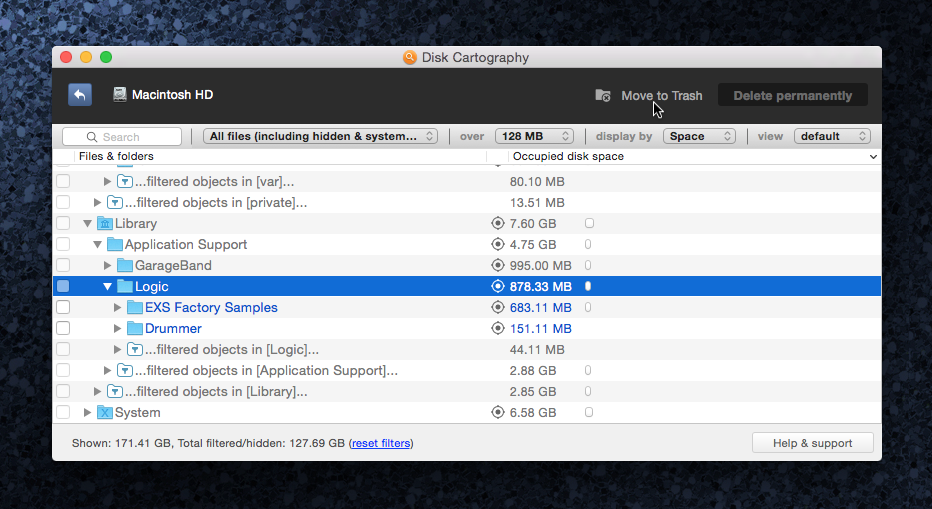
You can manually or automatically filter what is shown by setting parameters such as minimum file size, or whether or not to show System files, etc. The minimum file size feature is particularly useful because it allows you to view your file folder list without the thousands of files taking up so little space that it’s not worth seeing. You can see an example in the image above. Those “Filtered Objects” folders contain all the files on my drive that don’t meet my minimum filter requirements of a minimum of 128MB in size.
Scanning my drive took only a few minutes, and the app displays the data in a clear and simple interface. I also liked that I can right-click on a file or folder to ‘show it in the Finder.’
Disk Cartography isn’t the only app out there that does this, and it certainly doesn’t have the most luscious user interface of them. But I like the simplicity of the app.
There is no dedicated web page for Disk Cartography as of this writing, but you can buy it directly from the Mac App Store here.
You can grab your copy for $1.99 until May 18th when the promo ends.
 Apple | Mac
This Automator Action collection for Apple’s new Photos app in Mac OS X Yosemite makes your photography workflow a much more efficient and smoother process. In particular, I love the Import image into a specific Album action file. This allows me to quickly add desktop wallpapers and other images I’ve acquired online to a specific Photos album without actually going through the process manually.
There are a ton of other fantastic Automator Actions available at MacOSXAutomation. Be sure to check them all out to see if there’s something else you can use.