Post Tagged with: "text"

Quickly identify kerned or tracked text using InDesign’s Composition preferences

Quickly identify kerned or tracked text using InDesign’s Composition preferences

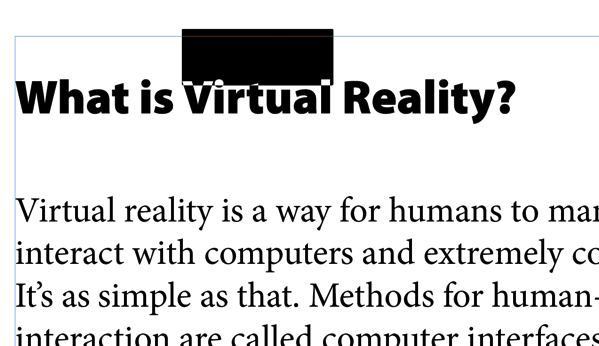
InDesign kerning warning

Easily spot kerned/tracked text

When dealing with text-heavy documents it can be particularly difficult to know if text has been manually kerned or tracked.

This can be particularly important to identify if you work in an environment where you’re not the only person editing the file.

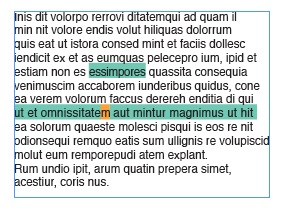
To quickly identify kerned or tracked text, you need to visit InDesign’s preferences by hitting Command + K and select the Composition item in the left-side source list. In the Highlight section at the top, tick the Custom Tracking/Kerning checkbox and hit the OK button.

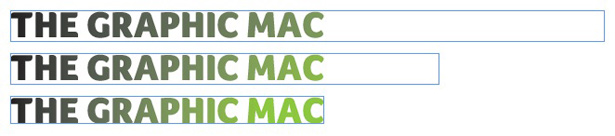
From that point forward, any text that has been tracked text will be highlighted in green, and any kerned text will be highlighted in orange, as you can see in the image above.

05/04/2012 Read More
How to quickly switch to any InDesign tool while editing text

How to quickly switch to any InDesign tool while editing text

InDesign CS5When you’re editing text in Adobe InDesign, switching to a different tool cannot be done simply by hitting the keyboard shortcut for that tool because you’ll end up typing that letter in the text frame.

Instead, to switch to another tool, Command + Click on the text frame or hit Command + Shift + A to exit text editing mode. You can then hit the appropriate letter to switch tools, such as P for the Pen tool, or M for the Rectangle tool.

04/30/2012 Read More
Paste text without formatting in OS X Lion

Paste text without formatting in OS X Lion

If you want to copy formatted text from one document into a new one but don’t want to keep the formatting, you can do so with a simple keyboard shortcut.

Simply copy the text as you normally would (Command + C), then move to where you want to paste the text and hit Command + Shift + Option + V. Your text will be pasted with no formatting whatsoever.

This is particularly useful when copying colored text with one font and pasting it into a new document that uses completely different fonts and colors.

01/24/2012
Viewing overset text in your InDesign document

Viewing overset text in your InDesign document

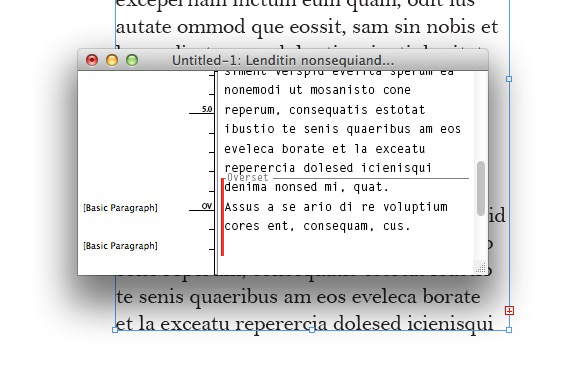
When you’re entering or placing text in a text frame in your document, InDesign lets you know when you have more text than it is able to display in the frame by adding a tiny red + icon in the lower right corner of the frame indicating overset text. For obvious reasons, you might want to know how much text is overset, but expanding the frame to see how much text is overset is, well, overkill.

Overset Text

InDesign can display exactly what text is overset in a text frame

Instead, you can view exactly what text is overset by simply hitting Command + Y with the text frame selected. This brings up a small window called the Story Editor.

At the bottom, you’ll see a red bar along the side, as well as a gray divider line showing exactly how much text is overset. To save time, you can edit your text right in the Story Editor until it all fits in the frame, if that’s what you choose to do.

12/19/2011 Read More
Tutorial: Stone-Textured Text

Tutorial: Stone-Textured Text

Stone texture tutorial

This simple Photoshop tutorial will help you add a little pop to your text

There are very few tutorials that I come across which I find might actually be useful. Don’t get me wrong, you can learn a lot going through a tutorial even when the end result isn’t very useful in your day-to-day work. This stone textured text tutorial I found at DesignM.ag is one of the few exceptions. In going through the tutorial, I immediately thought of several uses (such as divider pages in long documents. I also loved the flexibility it offers you — you don’t have to follow the tutorial to the letter to get great results.

01/19/2011 Read More
Spanning your InDesign headline across multiple columns of text

Spanning your InDesign headline across multiple columns of text

In the past you had to create a separate text container for your headline when you wanted to span it across a multi-column text box in InDesign. This presented problems with accurate spacing, and was a general pain in the behind. Thankfully, Adobe InDesign CS5 makes the process simple.

InDesign column spanning

Headlines look pretty horrible in multi-column text by default

As you can see in the image above, a headline that stays in the multi-column format looks pretty horrible. Most people want to have the headline span across both columns. It’s simple to do, and you don’t need to create a separate text box to do it.

First, select the text you want to span columns, then click the fly-out menu icon in the Paragraphs panel and choose Span Columns… to activate the Span Columns dialog box you see below.

InDesign Span Columns dialog

InDesign's Span Columns dialog box offers you plenty of customization

Simply choose Span Columns from the drop-down menu, choose the number of columns you want the headline to span, and optionally choose how much space before and/or after the spanned text you want.

InDesign's Span Columns results make it easy to work with your text

InDesign's Span Columns results make it easy to work with your text

After you hit OK, your text will span the columns (as seen above), and will easily reflow with any text changes you make to the body text before or after the spanned text.

12/10/2010 Read More
How to balance text in multiple columns in your InDesign document

How to balance text in multiple columns in your InDesign document

One of the cool new features found in Adobe InDesign CS5 is the ability to balance the amount of text appearing in multiple columns.

Unbalanced columns of text

Unbalanced columns of InDesign text

Take the image above for example. Rather than inserting hard returns, using the Enter key to force text to the next column, or adjusting the size of the text container itself, you can simply use the Balance Columns feature. To do so, select the text container to make it active, then go to Object>Text Frame Options… (or hit Command + B). In the dialog box that appears, tick the Balance Columns checkbox. The results are a balanced columns of text, regardless of the text container size as seen in the image below.

Balanced columns of InDesign text

The same text with InDesign's Balance Columns feature applied

The beauty of this feature is that you can add more text later and the text columns will always adjust to stay balanced, as opposed to having to go back manually and remove hard returns or re-adjust the size of the text container.

12/06/2010 Read More
Centering InDesign text at the top of a circular path explained

Centering InDesign text at the top of a circular path explained

A frequent question to Adobe InDesign users looking to center text at the top of a circular path is “for the love of God, why does InDesign move the text to the bottom of the circle (upside down) the second I center the text?”

While every designer on the planet would think that clicking at the top center of the circle with your text tool, typing your text and centering it would result in the text being centered at the point you first clicked; that’s not the way software engineers think. To make sense of why your text gets centered at the bottom of the circle, you must first think of the circle as a straight line – with the top of the circle being the start of the line. So it stands to reason that the middle of the line is the bottom of the circle. See the graphic below if you’re still not getting it.

Text at the top on a circular path

So the simple solution is that if you want to center your text at the top of the circle, you must click the text tool at the bottom of the circle first – which makes the bottom of the circle the start of the line – which makes the top of the circle the center… if that makes no sense to you, then you can forget any chance of a career as a software engineer.

03/17/2010 Read More