A better way to get rounded-corner rectangles in Adobe…
 It’s so easy when you want to create a rectangle with rounded corners in Adobe Illustrator to just click that Rounded Rectangle tool icon in the Tools panel and just click & drag. The problem is, you have no control over those corners once your rectangle is created.
Sure, you could select the Rounded Rectangle tool icon and Option + click to bring up a dialog box allowing you to specify the radius of the corners. But again, once the rectangle is dragged out, that’s it. There’s no going back and changing that radius later, and attempts to resize the rectangle later on actually resizes or stretches the rounded corners.
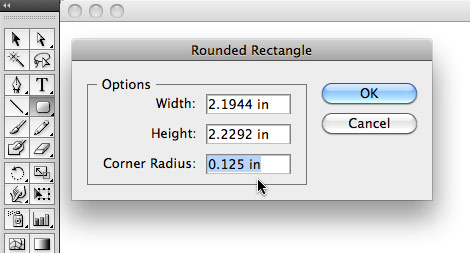
If you want to keep full control over those rounded corners of your rectangle, use the normal squared-edge Rectangle tool icon in the Tools panel. Once your rectangle is dragged out on the page, go to Effect>Stylize>Round Corners… in the menubar.
In the dialog box that appears, you can specify a custom corner radius amount. And here’s the great part. This is an effect applied to the rectangle, not the actual rectangle path.
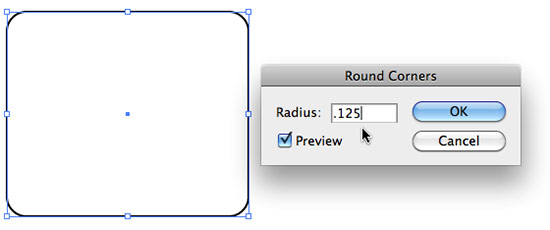
So now when you stretch that original three inch wide rectangle to nine inches wide, the corner radius doesn’t stretch with it, it stays exactly at the amount you specified. As an added bonus, you can go back later and change that radius amount if you wish via a quick visit to the Appearance panel.





13 COMMENTS
Pff… bullshit, almost all the time it’s better to have the REAL paths and no some effect behind a mask.
Actually, right now I need to transform my rounded star to the actual path.. and seems like I just cant.
It’s still fubar if you can’t release it to a editable line. How long until Adobe can get their programers to wrap their head around a very basic vector drawing ability….Jeeze.
I imagine you know about the “object/expand appearance” command? This releases the “appearance to a vector”
Yea so helpful, thank you!
Keep posting stuff like this i really like it
OMG! Thank you so much!
So how about rounding a single corner of a complex shape? And given that effects are applied to either the fill layer OR the stroke layer in the appearance panel (CS4) how does one simultaneously round corners of both layers of the shape?
So how about rounding a single corner of a complex shape? …
indeed I have the same question …
Yeah, the Appearance panel is a real hidden gem – every Illustrator user should learn to use it whenever possible!
It’s hard to imagine that Illustrator has no possibility to edit rounded rectangle corners later in the design process… In CorelDRAW I could do that 8 or 10 years ago with the shape tool — at any time…
Silly, isn’t it? Freehand was SO much easier for this sort of thing. One little window, and you had complete control over your corner radius. And it didn’t take me 15 mins to find the darn window to do it, either. I’ve been using both these programs for nearly 2 decades, and this is just one more example of how much more intuitive Freehand was compared to Illustrator.
Glad you added that last part about the Appearance panel—a feature too often overlooked.
Great tip! Thank you.
Comments are closed.