Keep layers intact when copy & pasting objects from…
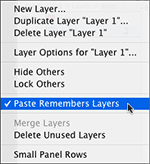 Moving objects from on InDesign document to another is as easy as drag-and-drop or copy-and-paste. But what about when your Indesign document contains items on multiple layers and you don’t want to lose them when you move the objects to another document? By default, InDesign merges all the objects when pasting in a new document onto the default layer. InDesign has a simple solution for this earth-shattering dilemma. Simply visit the Layers Panel flyout menu and select Paste Remember Layers. This will keep the objects you’re copying on their respective layers through the copy process.