Selectively override Adobe InDesign Master Page items

Selectively override Adobe InDesign Master Page items

12/31/2009 7:00 am

InDesign’s Master Pages are quite powerful, and make long documents easy to keep consistent. They do have their difficulties though when you try to alter items that are contained on the Master Pages themselves.
InDesign master page override

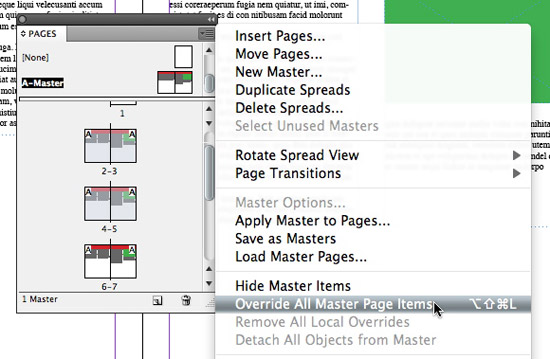
Easily override InDesign's Master Page items

The easy fix is to select all the pages you want to alter the Master Page items on in the Pages panel (Shift + Click to select more than one, or Command + Click to select noncontiguous pages), then select Override All Master Page Items from the Pages panel flyout menu.

Related posts:

  1. Moving facing pages to get rid of the orphan first & last page in Adobe InDesign
  2. Using InDesign’s page jumping feature
  3. Importing more than one PDF page into InDesign
  4. Jumping pages when using InDesign page sections
  5. Adding more pages to your InDesign document