 Apple | Mac
macOS’ hidden gem: built-in file renaming
Not so long ago, you had to pay for a 3rd-party app to batch rename files in the macOS Finder. Thankfully, Apple baked the capability right into the macOS Finder.
Apple | Mac
Not so long ago, you had to pay for a 3rd-party app to batch rename files in the macOS Finder. Thankfully, Apple baked the capability right into the macOS Finder.
 Apple | Mac
With Suspicious Package, you can answer this question and more. Maybe you’re quite literally suspicious of a package you’ve downloaded. Or perhaps you’re just curious about what some package does. Or maybe you want to find out after the fact exactly what files a package scattered across your computer. Whatever the reason, Suspicious Package allows you to see inside an application installer package.
Read more “Do you actually know what you’re installing?”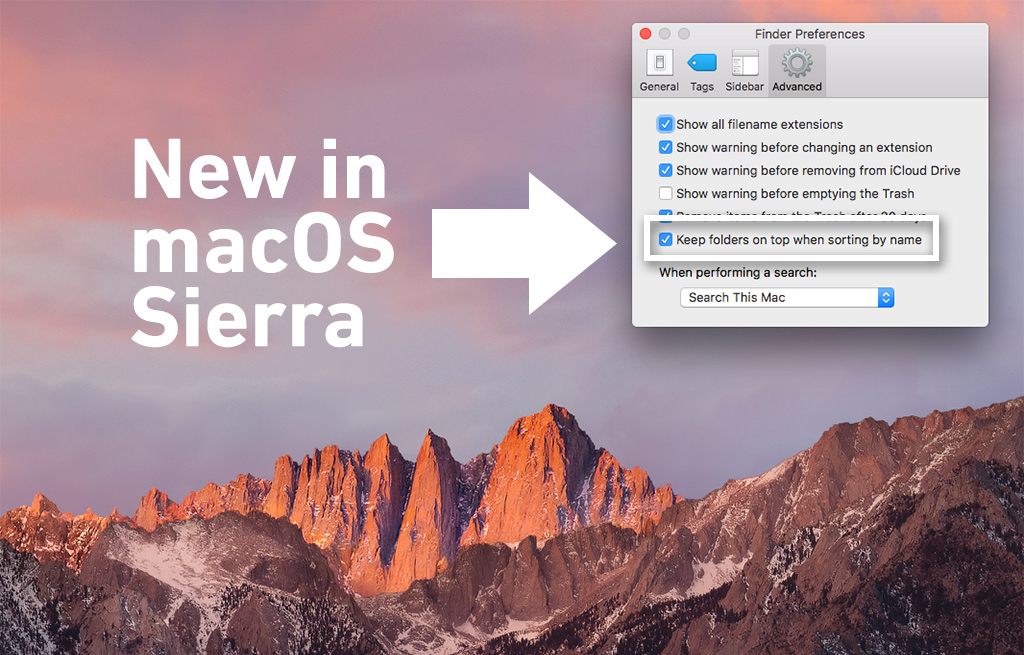 Apple | Mac
I can’t say definitively this wasn’t in El Capitan (because I have no machines running it anymore), but I noticed that in macOS Sierra, we finally have a Keep Folders on Top in List View option built-in to the system.
 Apple | Mac
When I decided to take a look at Commander One, I did so with the expectation that I was going to be looking at something that was equal to or better than apps I was already familiar with and/or used on a regular basis—such as XtraFinder, Path Finder, Transmit, etc.. After looking at the feature list of Commander One, I immediately wondered if it could possibly deliver on the promises it made.
Commander One is what you would call a Finder Enhancement app. It simply recreates Finder windows and adds a multitude of tweaks and features to them. This is nothing new; XtraFinder does this to some extent, and and Path Finder have done these things for years. But Commander One promises to offer Path Finder-level features, plus a built-in FTP manager, at an affordable price through the Mac App Store—where you have the luxury of installing it on five Macs at a time. Read more “Can you really replace Mac OS X’s Finder?”
 Apple | Mac
Open a Finder window (Finder > New Finder Window) and then choose View > Show Path Bar. The Path Bar appears at the bottom of all your Finder windows, showing the complete path from your computer to the current folder.
At first glance, that’s all the Path Bar does. But as Sharon Zardetto points out in her Macworld article: Five overlooked abilities of the Finder’s Path Bar, it can do a whole lot more.
 Apple | Mac
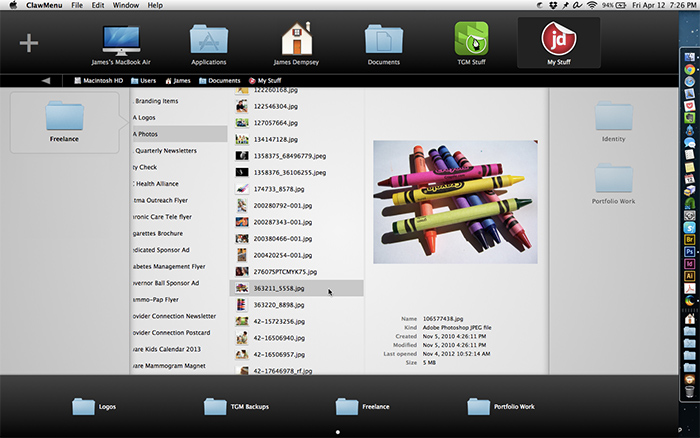
ClawMenu is one of those apps that you see and just want to give it a try. It offers you a way to supplement the Mac’s Finder with it’s own system for navigating your files and folders.
It’s a bit difficult to explain, but basically it puts an overlay window on top of OS X’s Finder for basic navigation. It offers a shortcuts bar across the top and bottom of the overlay, and offers one-click opening of files and folders.
At $7.99, ClawMenu isn’t going to appeal to everyone, as it’s not really something you “can’t live without.” But it may appeal to some users, and there is a 7-day demo available, so I thought I would share it.
 Apple | Mac
There are numerous ways to customize your Mac’s appearance, and one of the things I love about OS X is the ability to quickly change the views of your Finder windows using easy to remember keyboard shortcuts.
Apple | Mac
There are numerous ways to customize your Mac’s appearance, and one of the things I love about OS X is the ability to quickly change the views of your Finder windows using easy to remember keyboard shortcuts.Here’s a list of some of the commonly used keyboard shortcuts that will allow you to customize the way you view files in Mac OS X’s Finder.
Here is a more complete collection of keyboard shortcuts, straight from Apple.
Apple | Mac
With all the cool features found in Mac OS X, it’s hard to believe that there are a few obvious features still haven’t been added to OS X’s Finder. Finder tabs, window management, Dock enhancements, and a more robust dialog box have been shortcomings of Mac OS X for a long time.Perhaps someday soon Apple will finally get around to enhancing the Finder with the features mentioned above, but until then you can have them now via three fantastic add-ons; Default Folder X, HyperDock, and TotalFinder.
Read more “Three great utilities that should be built-in to Mac OS X”
Apple | Mac
Searching for and finding files with Mac OS X’s Spotlight is fast and easy. Unfortunately, adding keywords and comments to your files and folders isn’t quite as simple. This little OS X Service will change that.
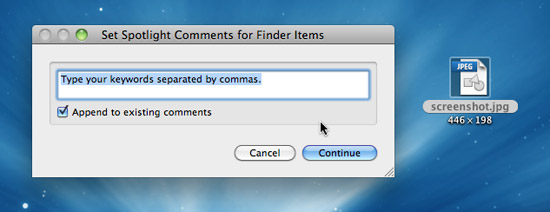
AddSpotlightComments Service is just what the name implies, a Service that makes adding keywords and comments simple. You install the workflow file to your ~/Library/Services folder and restart the Finder. Once installed, you can right-click on a file or folder in the Finder and select Add Spotlight Comments from the bottom of the Contextual menu. A dialog box appears where you can type in your keywords, comments, or whatever other info you wish. It’s that simple.
There are other utilities that offer this capability, but none are so seamless and simple.
Apple | Mac
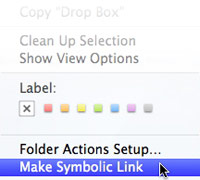 SymbolicLinker is a tiny contextual menu plugin (for Puma through Leopard users) and software service (for Snow Leopard & later users) that, once installed, allows any user to create symbolic links to files inside the Finder. SymbolicLinker does this by adding a contextual menu item to the Finder that generates symbolic links to the selected files.
Dan Frakes recently wrote a review of SymbolicLinker for his MacGems column at Macworld, which explains more about why you would want this handy little add-on for OS X. Needless to say, if you know you have the need for creating symbolic links, this app will save you trips to the Terminal each time you need to do it.