Post Tagged with: "shortcut"

Resize an Adobe InDesign image Frame with this quick shortcut

Resize an Adobe InDesign image Frame with this quick shortcut

When you have a large image placed inside a small Adobe InDesign Frame and you want to resize the Frame to show the entire image, there’s no reason to do it manually. As with so many of InDesign’s features, there’s a handy shortcut to do the job for you.

Frame resizing in Adobe InDesign

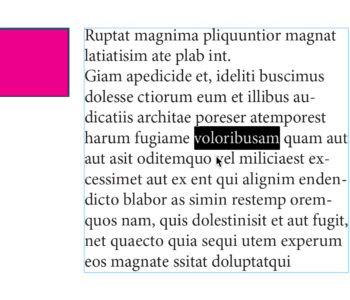
A simple double-click will resize an image frame in a variety of ways

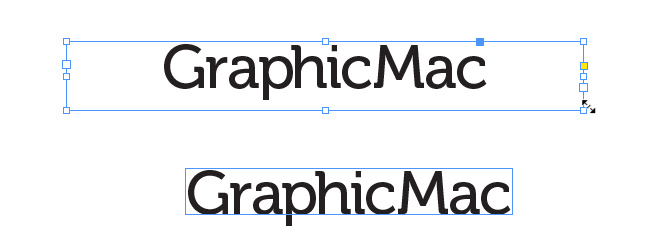
Simply select the Frame your cropped image resides in and double-click any corner Frame Handle to quickly resize the frame to fit the entire image placed in it. If you don’t want the entire Frame enlarged, but want the full width of the image to show, double-click one of the side Frame Handles. And of course, if you want to keep the width of the Frame intact, but resize it to display the full height of the image, double-click either the top or bottom Frame Handles to do that.

As you can see in the image above, the photo Frame on the left is cropped, but double-clicking on the Frame Handle on the side resized the Frame to show the full width of the image I have placed inside it.

04/19/2012 Read More
Adobe InDesign’s crosshair Guides creation shortcut

Adobe InDesign’s crosshair Guides creation shortcut

Adobe InDesign’s keyboard shortcut to create crosshair Guides (a vertical and horizontal guide) is so obvious that it’s easy to miss.

Create crosshair guides

Don't waste time dragging a horizontal & vertical guide out separately...

04/16/2012 Read More
Open files using OS X’s Quick Look feature

Open files using OS X’s Quick Look feature

Quick Look is a handy feature of Mac OS X that allows you to preview a file simply by hitting the Space Bar while the file is selected. A large preview window opens allowing you to see what the file is (provided the file format is supported by OS X.

Open files with Quick Look

Quick Look can open files with a simple mouse shortcut

With OS X Lion, you can open the image by clicking the small button in the upper right corner of the Quick Look window, but it’s much easier to simply double-click the Quick Look window. Not a huge time-saver, but every click saved is a click earned, I always say.

01/31/2012
Quicky check your hard drive’s free space

Quicky check your hard drive’s free space

Quick Look storage

Quick Look is more than just image previews

The Quick Look feature in Mac OS X Lion is useful for previewing images, text files and websites. But you can also use it to quickly check the free space remaining on your hard drive.

Simply click on the Mac HD icon on the Desktop or in a Finder window and hit the spacebar.

Another quick way to check your free space is to turn on the Status Bar in Finder windows by visiting View>Show Status Bar (Command + /) and click on the Mac HD icon in the Finder window. The Status Bar at the bottom of the Finder window will display your free space.

12/15/2011
Turn off multiple InDesign document layers with a single click

Turn off multiple InDesign document layers with a single click

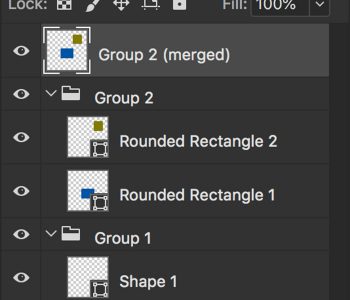
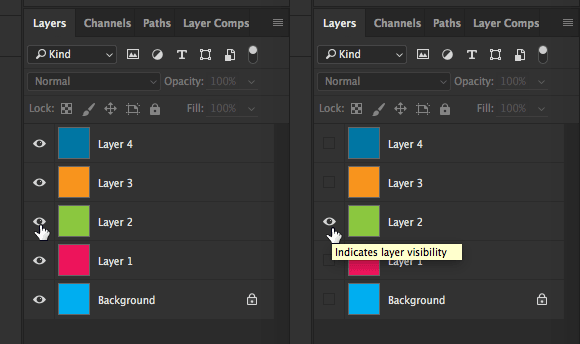
InDesign CS5If you have several layers in your InDesign document, and wish to work with no visual distraction on only one layer, you can turn all the others off quickly by holding down the Option key and clicking the eye icon of the layer you wish to keep visible in the Layers panel. I’ve used this same tip in Photoshop for quite a while, and finally realized it worked in InDesign as well. If you make use of layers, it’s quite handy!

11/22/2011
Quickly gather multiple files into a folder in OS X Lion

Quickly gather multiple files into a folder in OS X Lion

Gather items in Mac OS X Lion

Select multiple files in the Finder, right-click and choose New Folder with Selection

A handy little feature of Mac OS X Lion is the ability to quickly organize your files.

09/26/2011 Read More
How to quickly delete emails on your iPhone

How to quickly delete emails on your iPhone

iPhone 4My first problem is that I get a lot of email. My second problem is that I check my email throughout the day on my iPhone. And my third problem is that I often wish to delete emails without even reading them (thanks to spammers with no grasp of the English language, and horrible PR firms who can’t target the proper sites for their stories in the subject line).

Thankfully Apple has made a simple-to-use email app for the iPhone that works wonderfully for most users, and provides a simple solution to my third problem.

In fact, it may be a little too simple. I’ve yet to run into a single iPhone user that realized you could quickly delete emails without actually opening the email simply by swiping your finger across the email in the list. This will summon a Delete button for just that email.

If you check your Gmail account from within the built-in email app, you can set this swiping action to delete or archive emails.

09/04/2011 Read More
Resize Finder columns to fit long file names

Resize Finder columns to fit long file names

Mac OS X's Column View resize widgetDid you know that you can resize a Mac OS X Finder window when you’re in Column View to fit the widest folder or file name automatically? It’s a simple keyboard shortcut, and can save you a lot of scrolling and manual resizing.

Just hold down the Option key and double click the widget at the bottom of the column divider. I love working in Column View in Mac OS X’s Finder, and this shortcut makes it easier to get a view of full file names.

06/08/2011 Read More